PrepWrap user guide
From script to the last shooting day, step by step. Screenshots come from the demo project.
1. Getting started: import a script
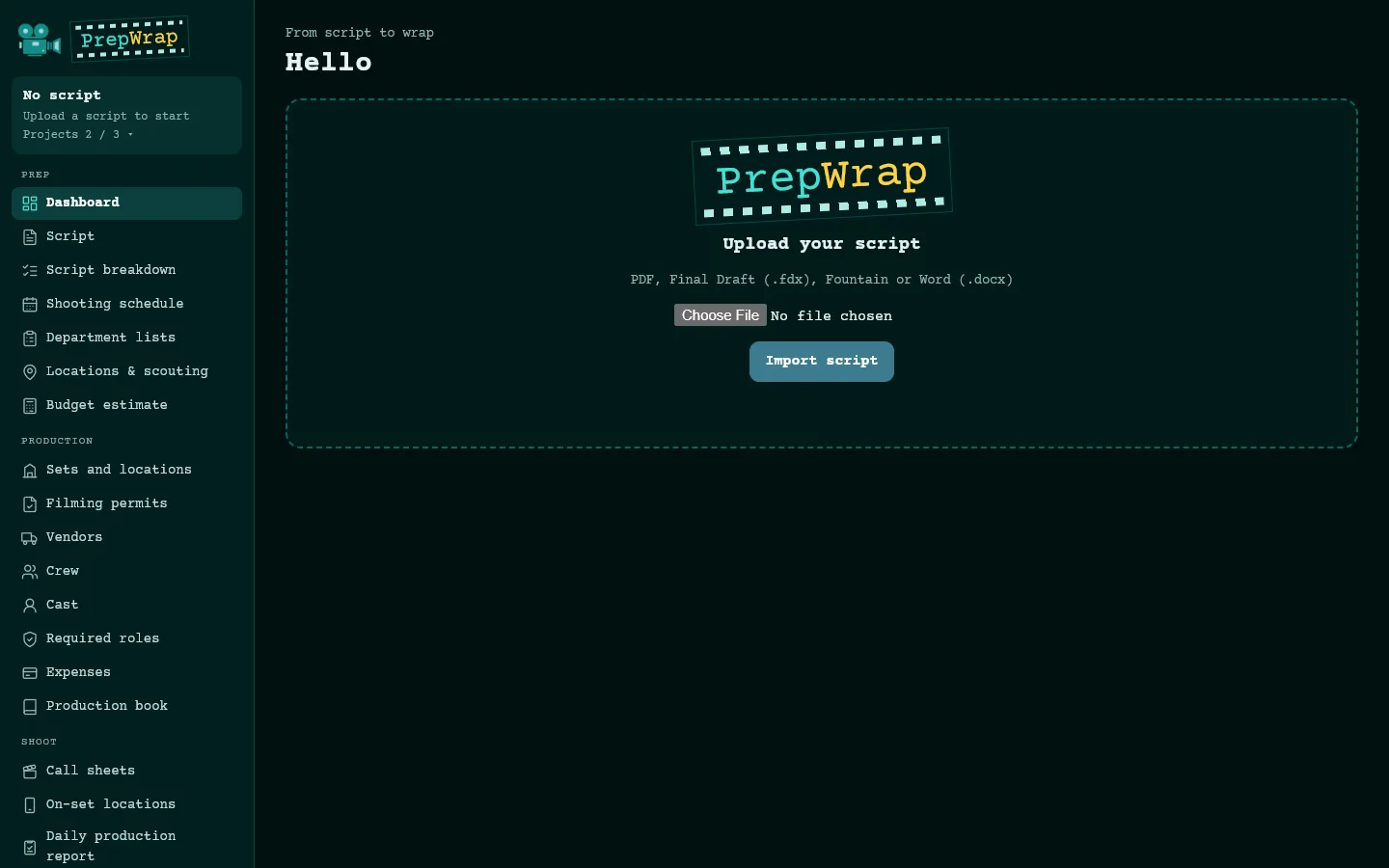
Sign in at prepwrap.com/app with the email and password you received. The first time, PrepWrap asks you to drop in your script.
- Supported formats: PDF (with text, not a scan), Final Draft (.fdx), Fountain and Word (.docx).
- On import, the script is split into scenes: number, interior or exterior, set, time of day, speaking characters and length in eighths of a page.
- A time of day that isn't written (a shot with no DAY or NIGHT) is carried over from the previous scene: check it on the Script page.
2. Script breakdown
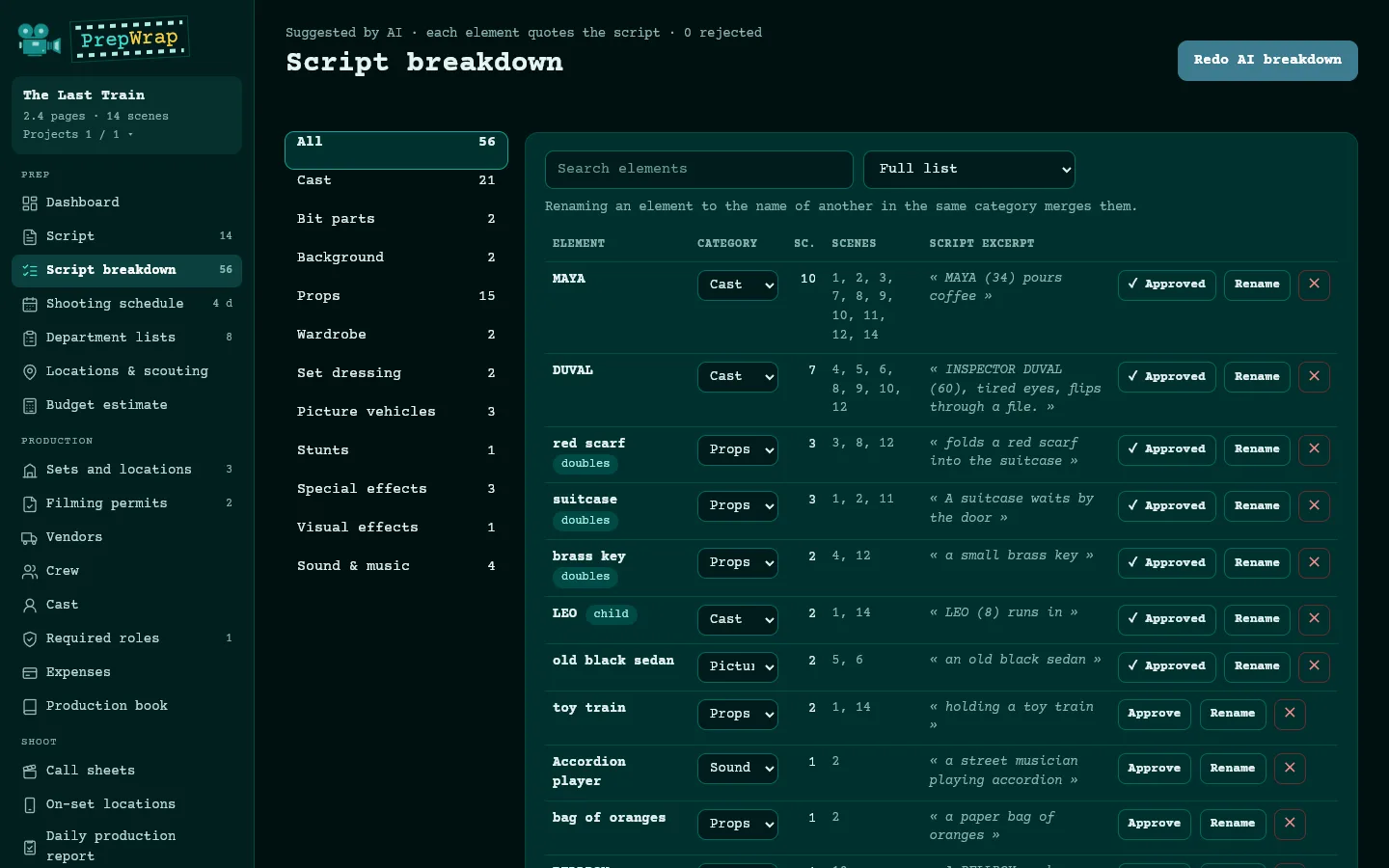
On the Script breakdown page, click “AI breakdown”. The AI reads each scene and suggests characters, background, props, wardrobe, vehicles, effects… Every element quotes the exact line of the script: if an element can't be found in the scene, it's rejected.
- “Approve” confirms an element; “Rename” fixes it; renaming an element with the name of another in the same category merges them.
- The category menu moves an element (for example from Props to Wardrobe); “Other…” creates your own category.
- Department lists (hair & makeup, props, set dressing, camera, sound…) fill in from the breakdown, with dates from the shooting schedule.
3. Bring in work from other software
Script breakdown page, “Import (Excel, CSV)”: choose a spreadsheet exported from StudioBinder, Filmustage, Movie Magic, Gorilla, Celtx… PrepWrap guesses what each column is (scene, element, category, quantity, shooting day or date); you correct it if needed, then import.
- Two layouts are read: one row per element, or one row per scene with one column per category.
- Other software's categories (Props, Wardrobe, Cast Members…) are matched to PrepWrap's; duplicates are skipped, scene numbers missing from the script are flagged.
- If the file has a Day or Date column, the shooting schedule can be imported too.
- Native Movie Magic files (.mmsx, .msd) can't be read: their format isn't public. Export the report to Excel.
4. Shooting schedule
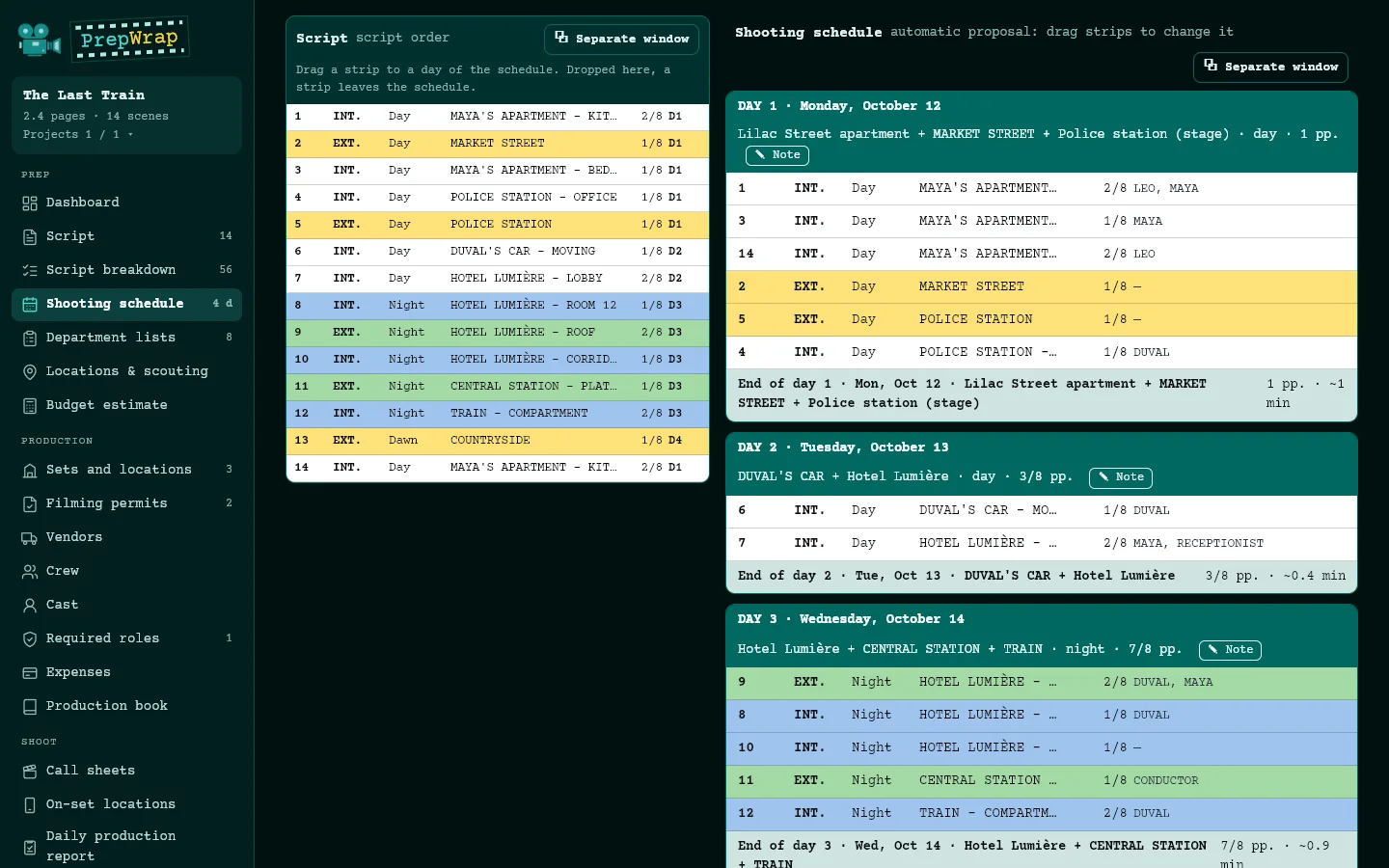
On the Shooting schedule page, choose the first day, the pace (pages per day, or a fixed number of days set by the production) and days off, then “Calculate schedule”. Key figures at the top: shooting days, of which nights, period, pages and average per day.
- Sets linked to the same real location (Sets and locations page) are shot back to back.
- Two areas: all strips in script order on the left, the proposal on the right. Drag a strip to another day, to “+ New day”, or back to the left area to take it out of the schedule. The schedule becomes “edited by hand”; “Back to the automatic proposal” undoes your moves.
- “⧉ Separate window” opens an area in its own window, for a second screen; you can drag from one window to the other.
- “Group night shoots together”: fewer days, but you return to some locations for their night scenes.
- Click a strip to add a note; “✎ Note” annotates a day.
5. Cast and location availability
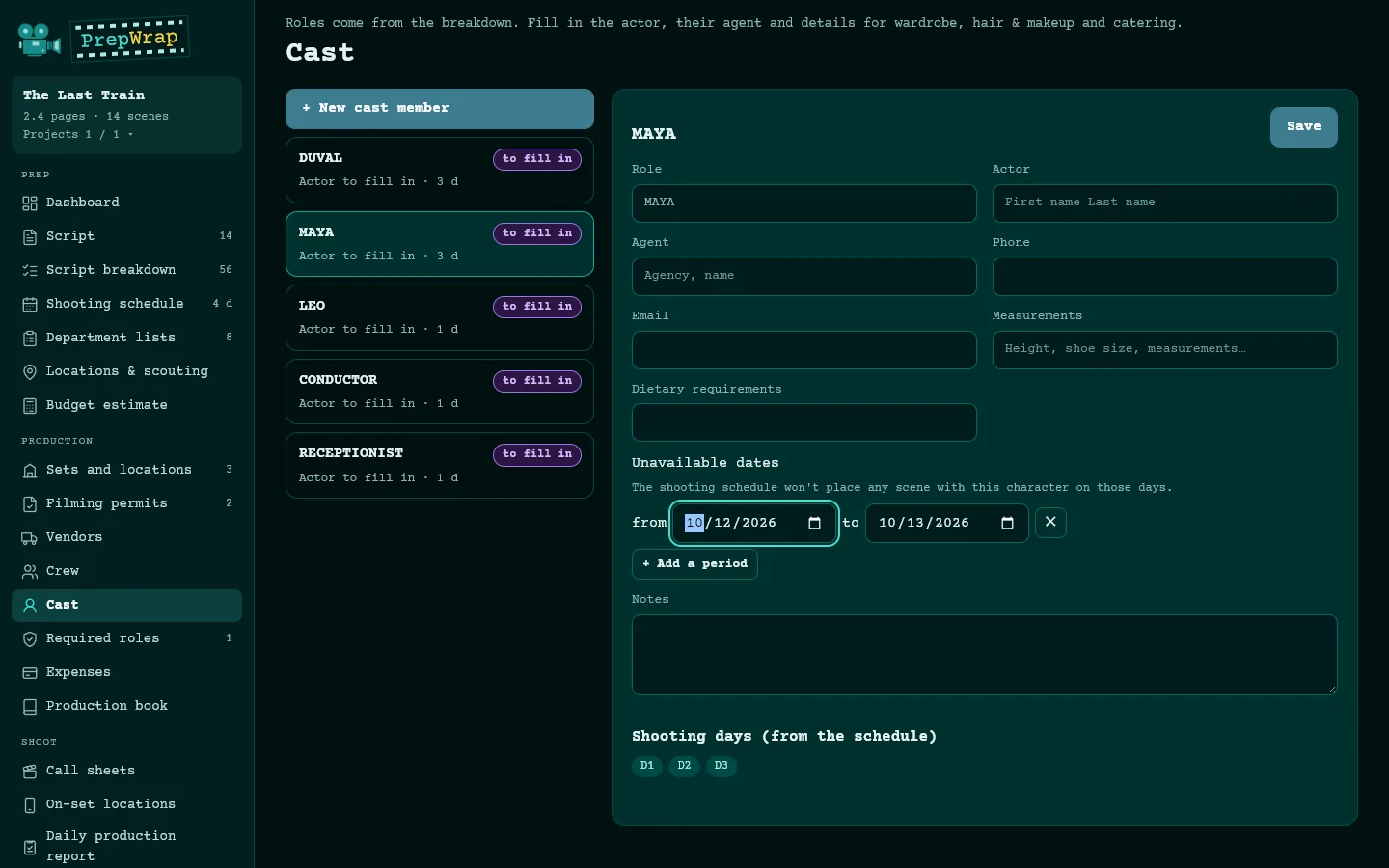
On a cast member's page, “Unavailable dates”; on a location's page, “Available only” and “Closed”: periods from… to…. The schedule takes them into account every time it's calculated.
- A scene that no day can take is shown at the top of the schedule, with the constraint that blocks it.
6. Sets, locations and production
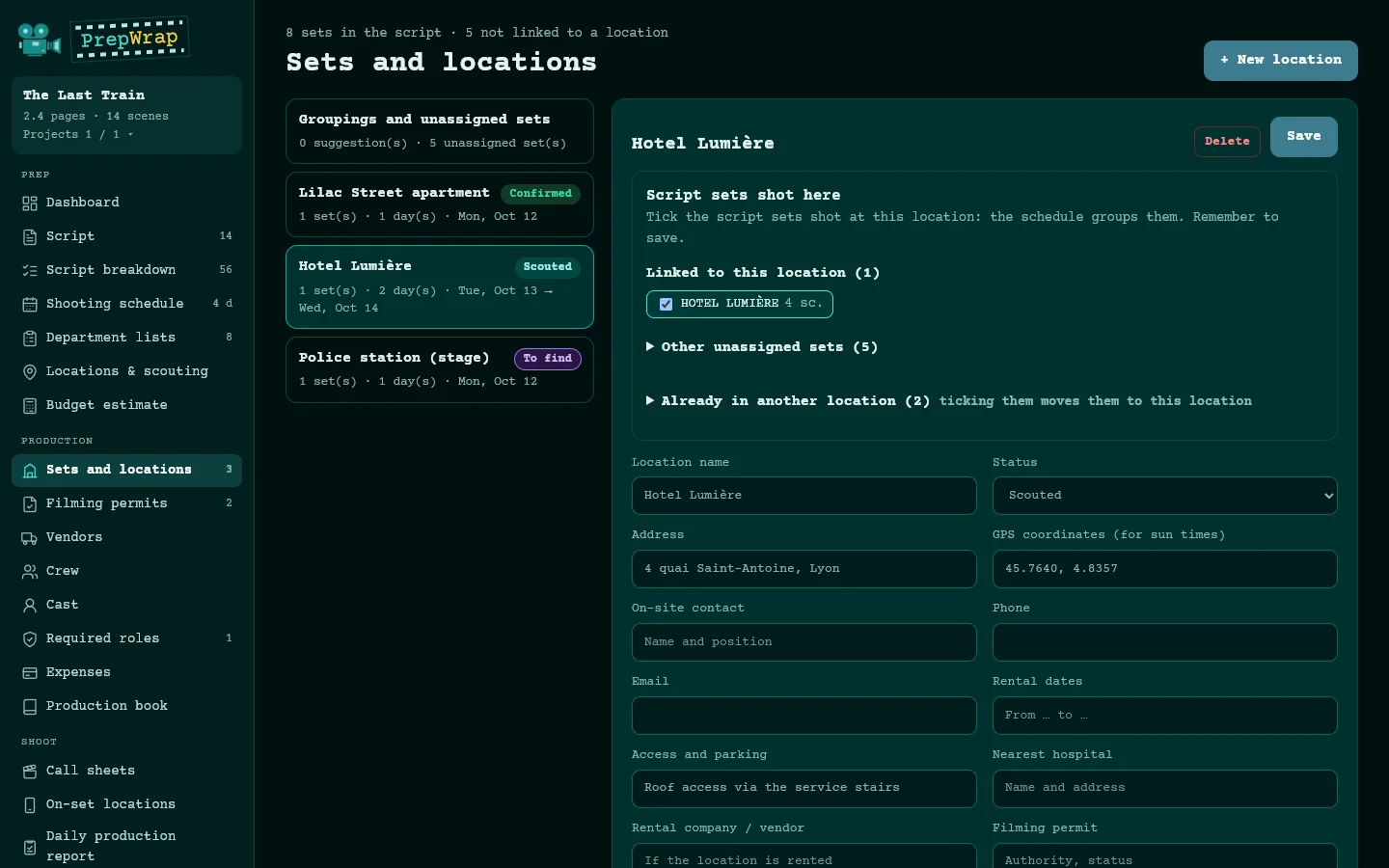
On the Sets and locations page, create a real location and tick the script sets shot there. Address, contact, access, nearest hospital and GPS coordinates (for sun times and weather) feed the call sheets.
- The Filming permits, Vendors, Crew, Cast and Required roles pages complete the production side. An underlined “to fill in” is clickable: it opens the field to complete.
- Locations & scouting tracks contracts, parking holds, neighbors and paperwork for each location, with deadlines that follow the schedule.
7. Call sheets and the crew link
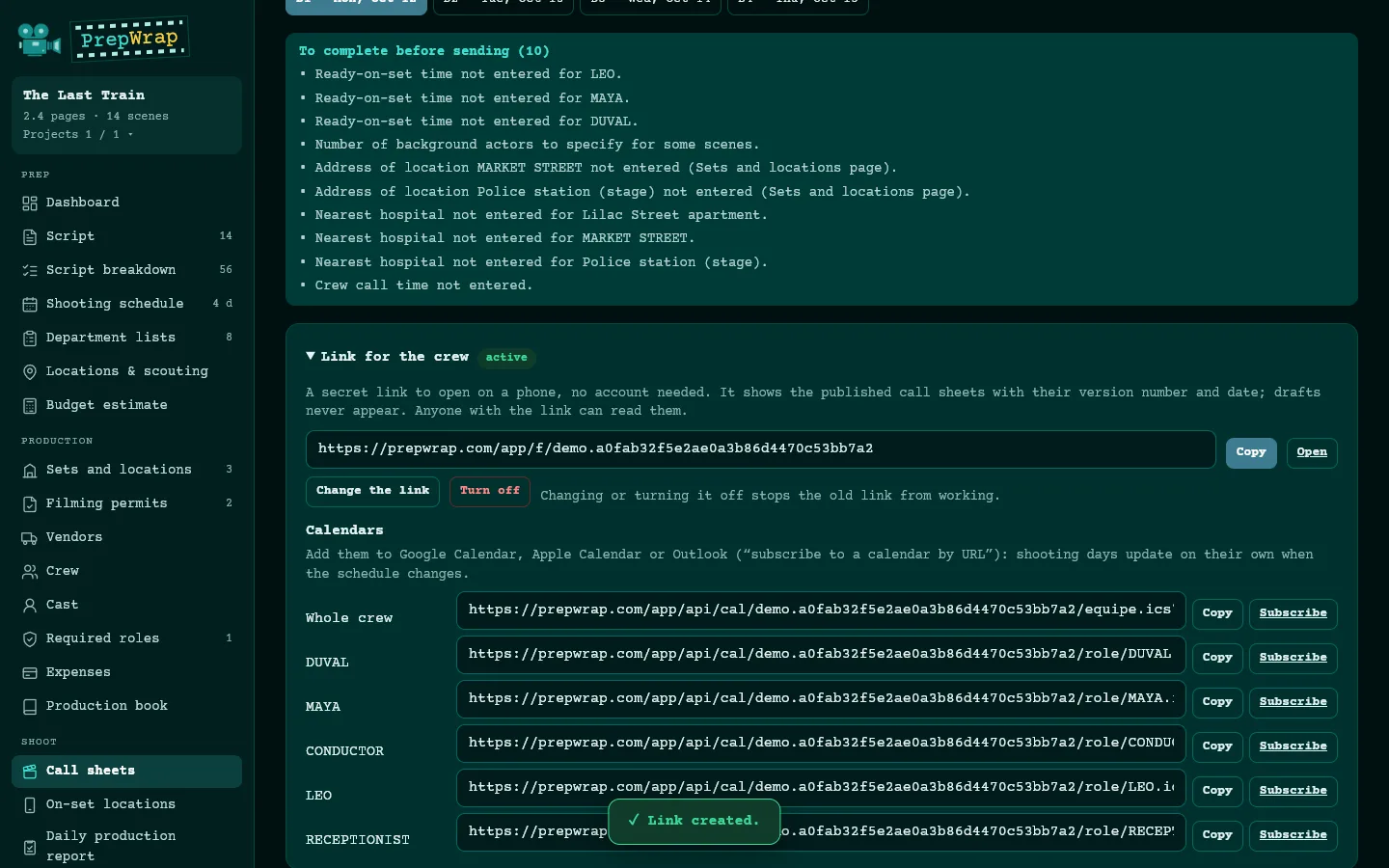
On the Call sheets page, choose the day, enter the times (crew call, shooting call, meal, estimated wrap) and the cast times, then “Save”. What's missing is listed; “Publish version” freezes the sheet, and the next version shows what changed.
- The location's weather forecast is added automatically 10 days ahead, for locations with GPS coordinates (source: MET Norway).
- “⧉ Sheet in a separate window”: the fields on one screen, the sheet on the other.
- “Link for the crew”: a secret link that opens the published call sheets on a phone, no account needed. “Change the link” or “Turn off” disables the old one.
- Calendars: one subscription for the whole crew and one per character, to add to Google Calendar, Apple Calendar or Outlook; they follow the schedule.
8. Keep the crew informed: announcements, Telegram, texts
Three ways, to combine. None requires the crew to create a PrepWrap account.
- Announcements (Call sheets page): a short message, marked urgent if needed. It shows at the top of the crew link and goes to the Telegram group if one is linked.
- Telegram group (Shoot menu): create the group in Telegram, add the PrepWrap bot in one click, then invite the crew by email (addresses in blind copy). From then on, every published call sheet, every announcement and a reminder the evening before (7 pm by default) arrive there on their own.
- Texts from your phone (“Notify the team by text” block): a ready message per person, with their call time and the day's link; one tap opens Messages. Free, from your own plan.
- WhatsApp group: paste its invite link; a button opens WhatsApp with the message ready. In a WhatsApp group, everyone sees everyone's number.
- Automatic send to everyone, optional: the account holder connects the production's Twilio account. Twilio bills its texts directly (no subscription; about $0.08 per text to France, less than $0.01 to the US); PrepWrap charges nothing. The estimated cost is shown before each send.
- Consent: on the Crew and Cast cards, record “Accepts texts” or “Refuses texts”. Automatic sends only go to those who accepted; those who refuse are left out of all texts.
9. What the crew sees on a phone
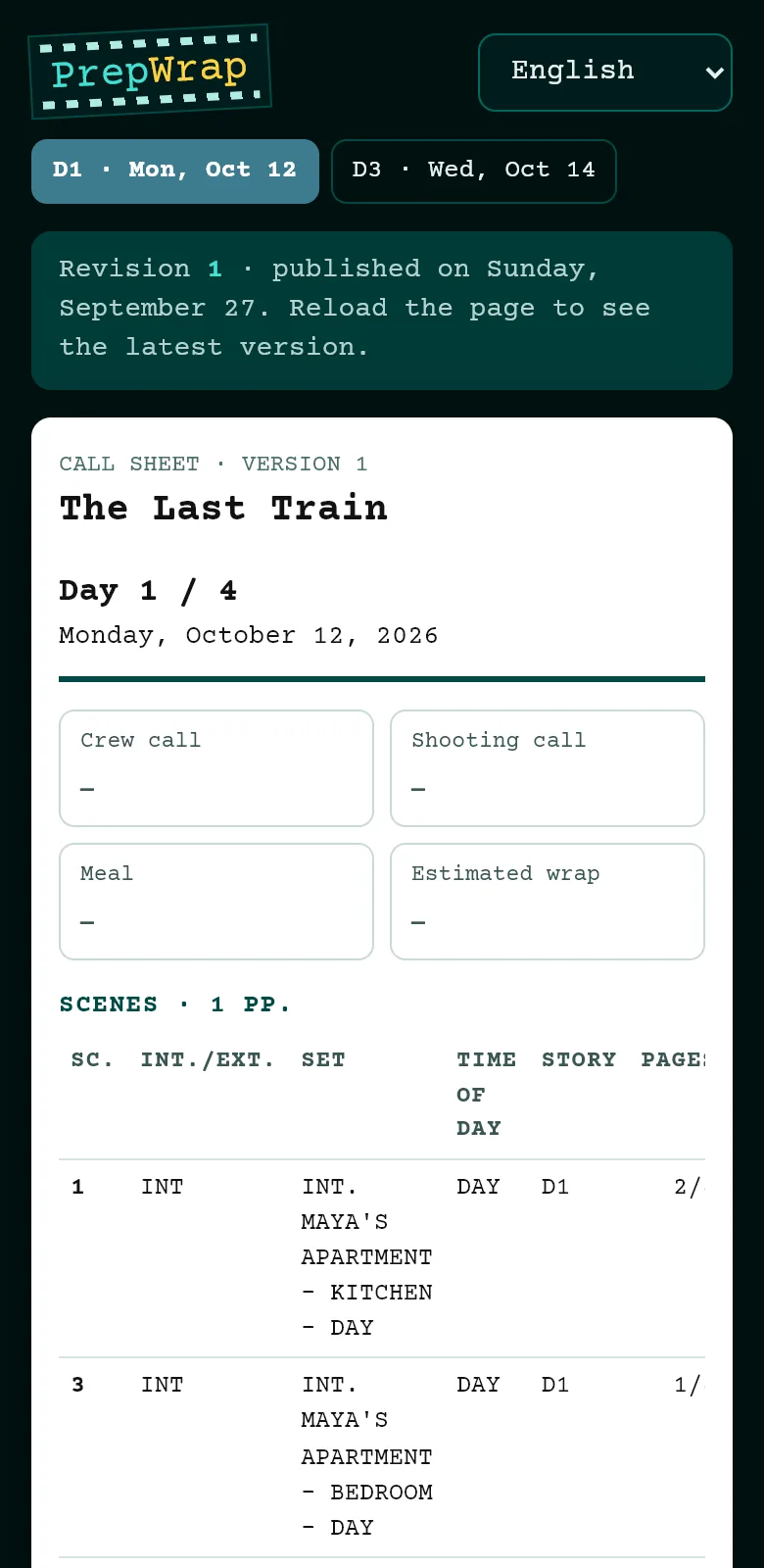
The crew link opens in the phone's browser, in the chosen language: published days, the version and its date, the full sheet, printable if needed.
10. During the shoot
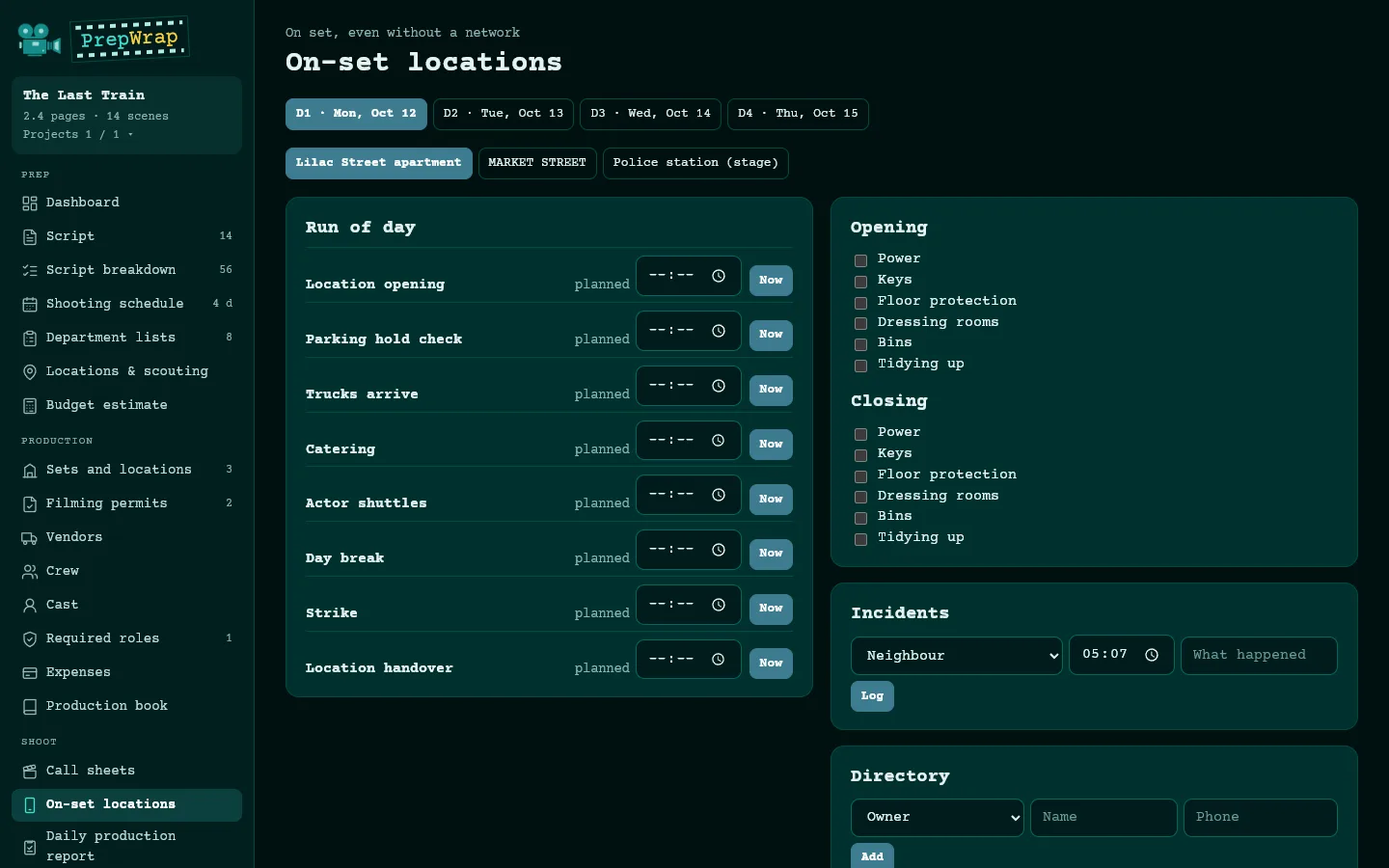
- On-set locations: the run of the day, opening and closing the location, incidents, contacts and petty cash are logged on a phone, even offline; everything is sent once the network is back.
- Camera report: rolls or cards per camera, takes, and the rushes sheet for the lab.
- Script supervisor's report: scene status, timing, setups, continuity.
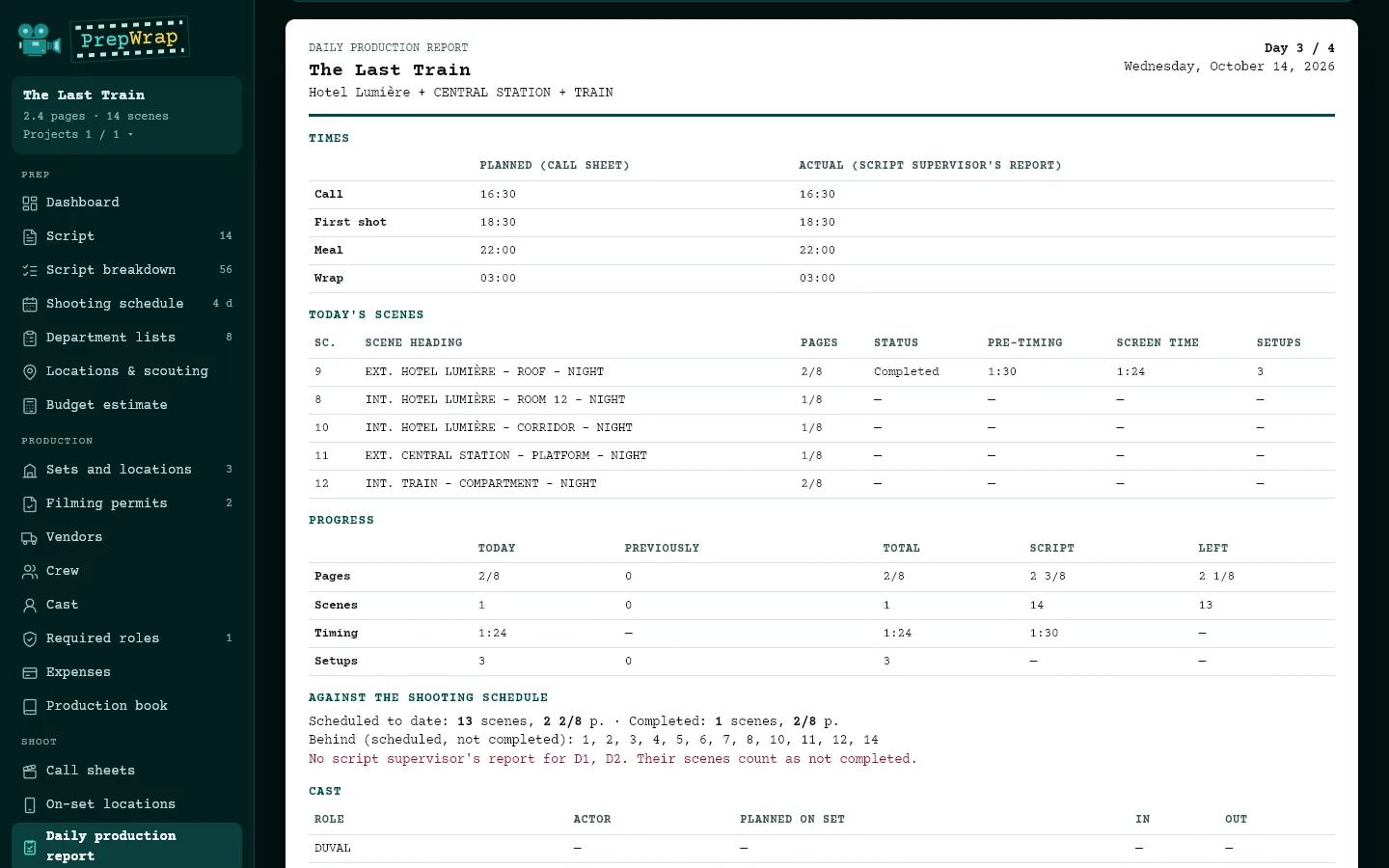
- Daily production report: every evening it gathers the other reports (planned and actual times, scenes shot, ahead of or behind schedule, media, incidents). To fill in: cast in and out times, background actors, overtime, notes.
11. The daily production report
Print it on A4 or save it as a PDF. If a previous day's script supervisor's report is missing, it says so: that day's scenes then count as not completed.
12. Budget, detailed budget and expenses
- Budget estimate: calculated from the schedule and the breakdown, with your own rates. No rates are provided: a line without a rate is flagged, never estimated.
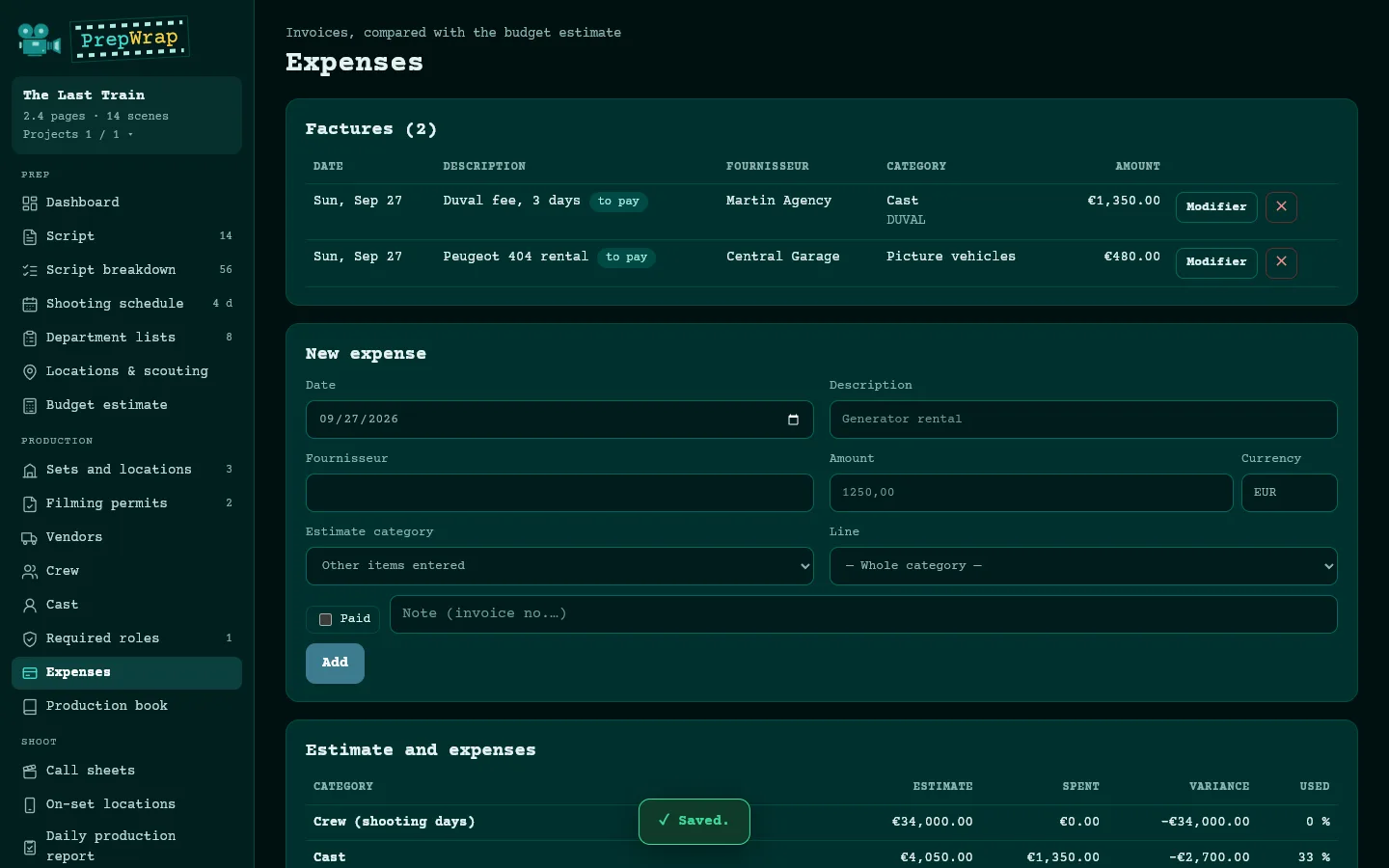
- Expenses: enter invoices and assign them to a category (and, if needed, a line). The comparison shows, category by category, the estimate, the amount spent, the variance and the percentage used. On-set petty cash is shown separately.
- Production budget (Production menu): choose the template your funder requires (CNC features, shorts or TV, ICAA, FFA, MiC for Italy, OFC, BFI); PrepWrap uses its chapters and account numbers, in the template's language, with a link to the official source.
- Starting point: items from the breakdown and schedule, the budget estimate with your rates, or an empty budget. Each line: quantity × days × unit price; days can follow the calendar (prep, shoot, post…).
- Overheads, contingency, margin: as a percentage or an amount, with no default value. Successive versions, comparison between two versions, a second currency with a single rate, Excel export with formulas.
13. Document templates
Production menu, “Document templates”: by country (France, Spain, Germany, United Kingdom, United States), the documents to plan for (permits, image rights, children, drones, insurance…), with the official texts and bodies.
- Five French-law letters to fill in and print: private location filming agreement, image release, legal guardians' consent for a child, insurance certificate request, filming permit request. Your company details are entered once.
- These are indicative templates: have them reviewed by your lawyer. Cast and crew contracts fall under employment law and collective agreements: there's no template in PrepWrap.
14. Script revisions
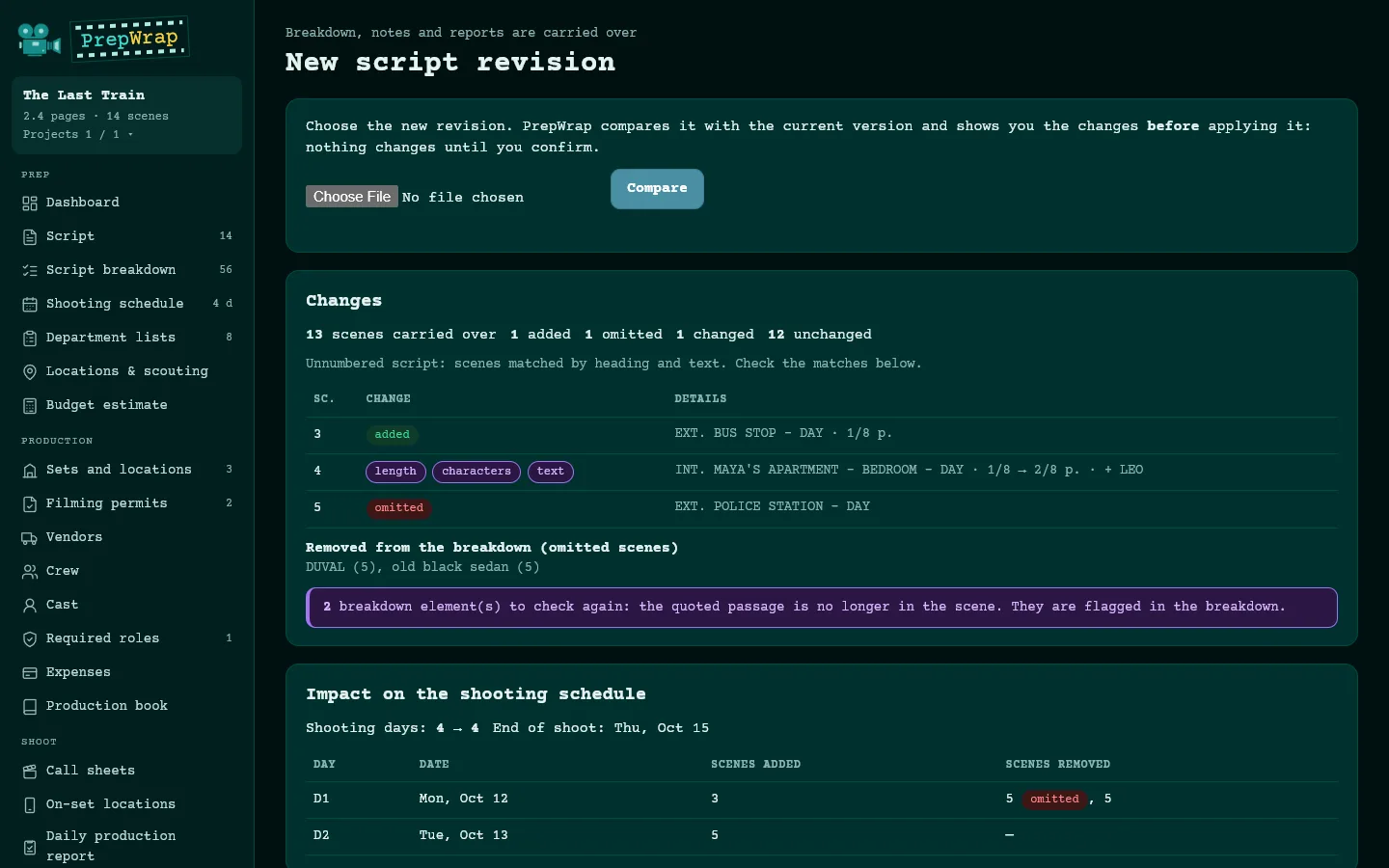
On the Script page, “New script revision”. PrepWrap compares both versions and shows, before you apply: scenes added, omitted and changed, breakdown elements to check again, the impact on the schedule and on call sheets already published.
- Breakdown, notes and reports are kept. Choose the revision color (blue, pink, yellow…).
- “Break down new and changed scenes”: the AI reads only those.
15. Team, projects and access
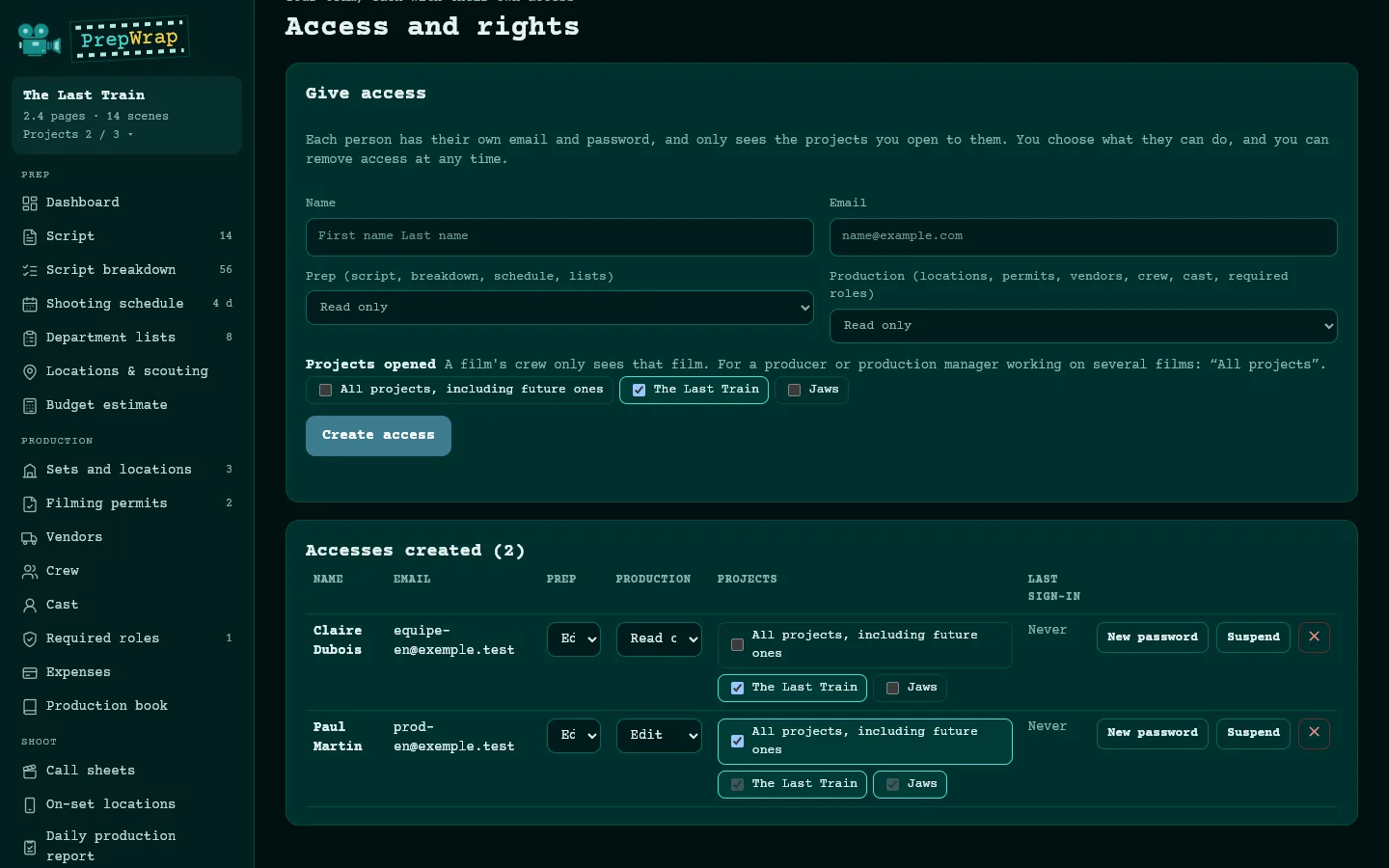
Account menu, “Access and rights”: create an access for each person (email and temporary password). For each one, choose the rights (read or edit) for prep and production, and the projects they see.
- A film's crew only sees that film; “All projects, including future ones” suits a producer or production manager.
16. Several projects
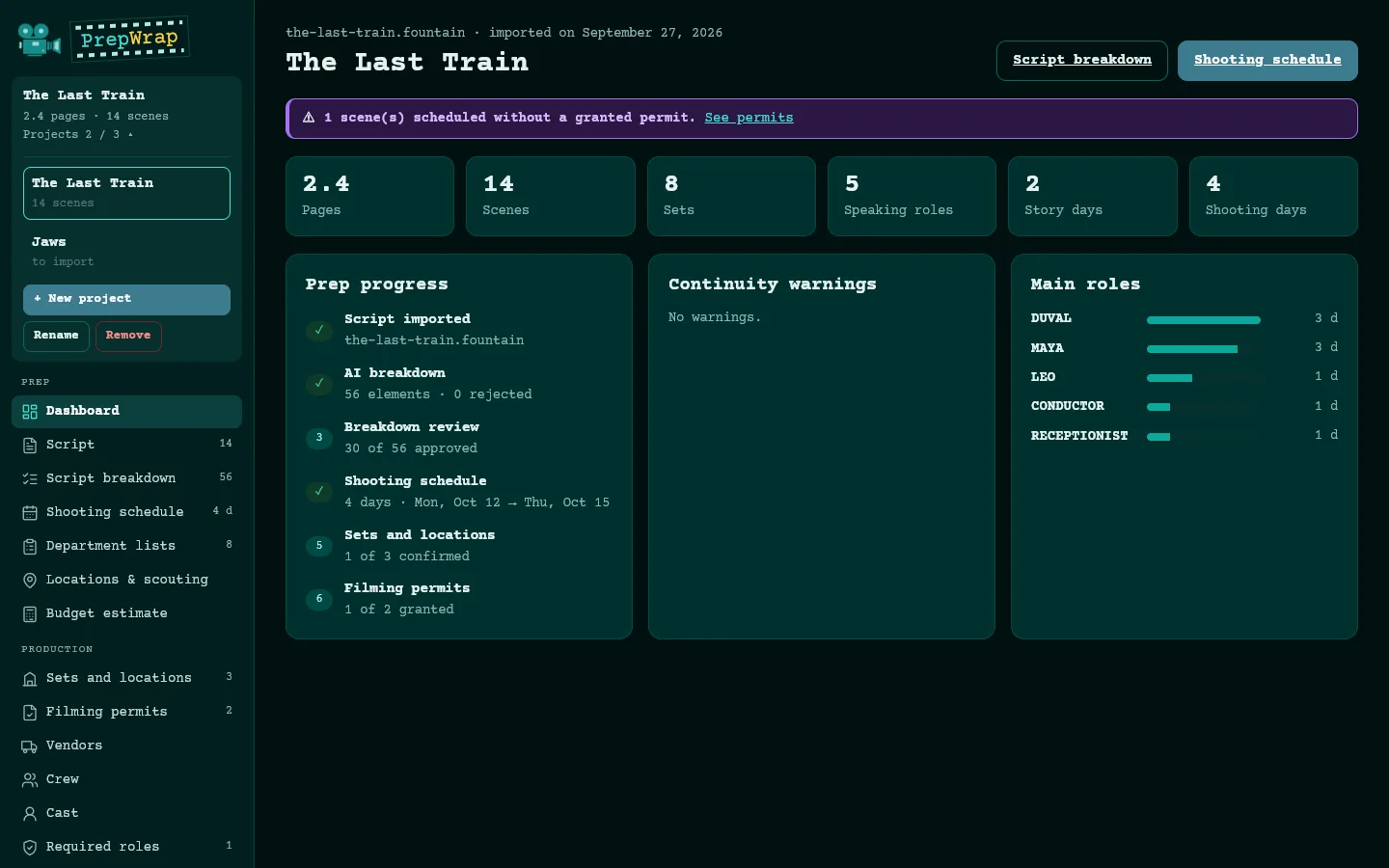
The project box at the top of the menu opens your list of projects: switch project, “+ New project”, “Rename”, “Remove”. The number of scripts depends on your plan; when it's full, “Request more scripts”.
- Project backups (Account menu): every night, a copy of each project is kept for 30 days; “Go back to this copy” first sets the current version aside.
17. Settings
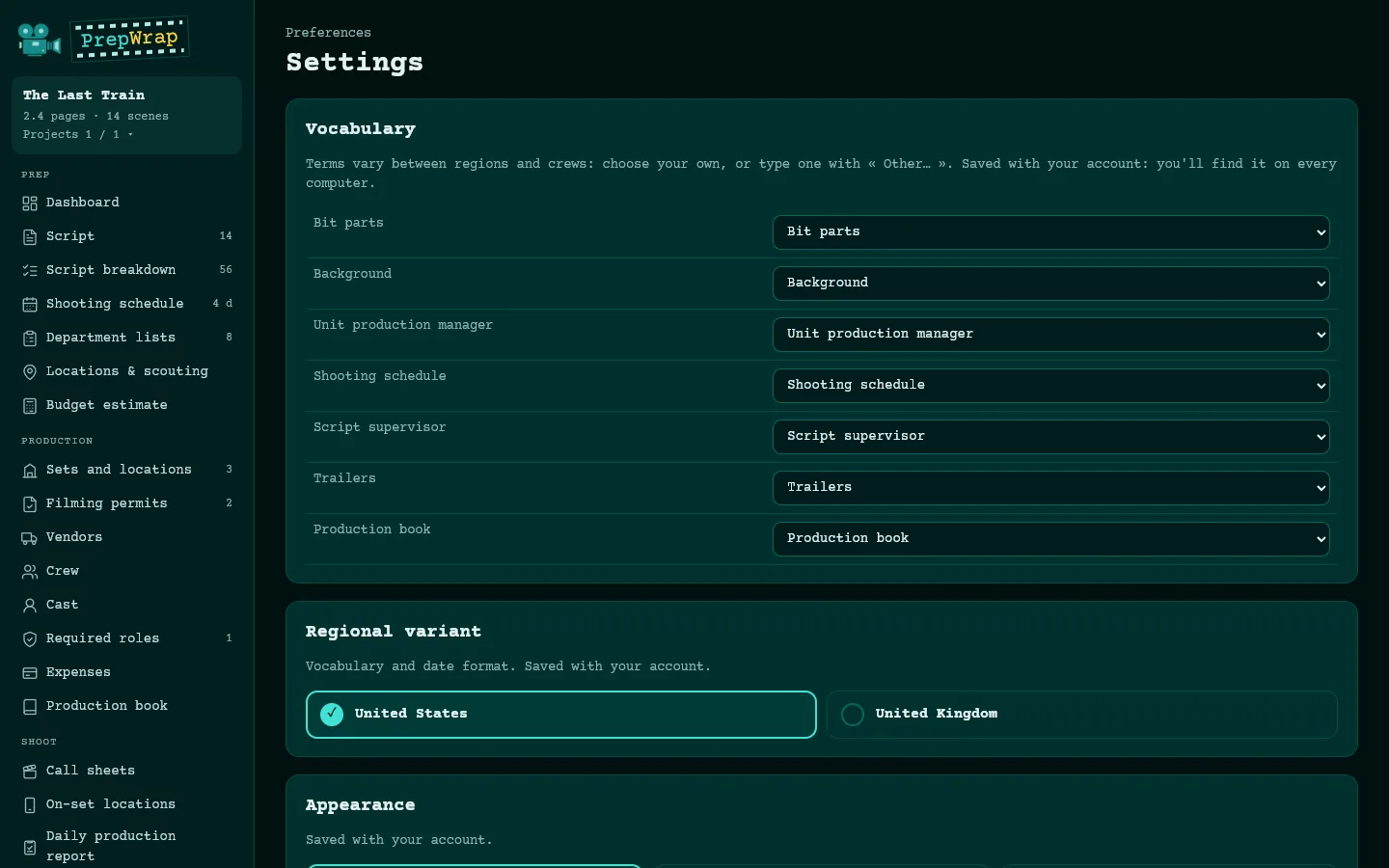
Language (English, French, Spanish, German, Italian, Thai, Vietnamese, Afrikaans), regional variant, vocabulary (replace a term with your own), theme and font: saved to your account, on all your devices. Strip colors are chosen on the Shooting schedule page.